From CSV to WhatsApp: a step-by-step contact import guide
A walkthrough of preparing your contact CSV, mapping personalization variables, and sending your first WA Shooter campaign without losing a single contact to formatting issues.
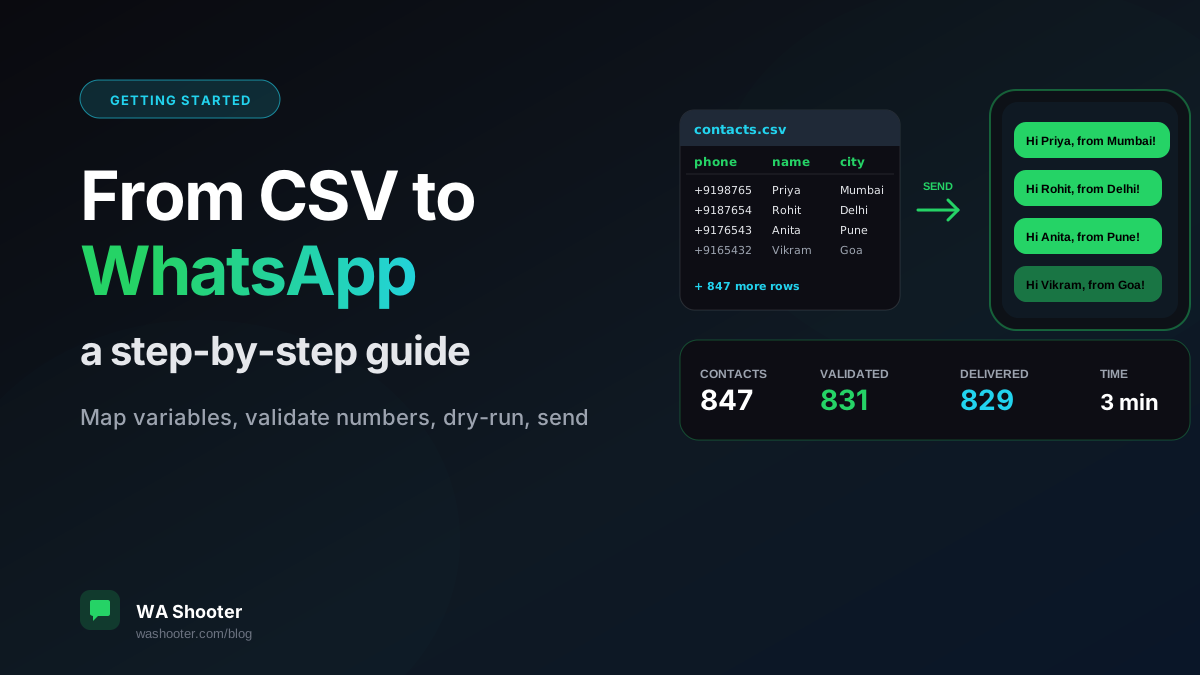
Most "my campaign didn't work" reports come down to one thing: the CSV was not in the format the tool expected. This guide walks through the file format that Just Works, plus a few traps that are easy to avoid once you know about them.
1. The minimum viable CSV
You only need two columns to send a WhatsApp campaign:
phone— the contact's phone number, with country codename— the name you want personalization to use
Your file can have more columns; WA Shooter will offer them as variables when you compose a message. But these two are the floor.
2. Phone number formatting
The single most common cause of "messages bounced" is phone-number formatting. The rules:
- Always include the country code (e.g.
91for India,1for US/Canada). - Plus sign is optional but recommended —
+919876543210and919876543210both work. - No spaces, dashes, or parentheses.
+91 98765-43210will be normalized, but cleanest is no formatting. - Excel will sometimes drop the leading zero or convert numbers to scientific notation. Format the column as Text before saving as CSV. (Format Cells → Text → re-paste your phone numbers.)
3. Use double curly braces for personalization
Inside the WA Shooter compose box, you reference any column from your CSV with double curly braces:
Hi {{name}}, your {{product}} order #{{order_id}} ships tomorrow.Variable names are case-sensitive and must match the column header exactly.
4. Validate before you blast
Open the Number Validation step before sending. This pings WhatsApp to check which numbers are actually active and skips disconnected ones automatically. It costs you 30 seconds and saves you from messages bouncing into the void.
5. Run a 3-contact dry-run first
For any new template, send to a tiny sample first — your own number, a colleague, and one real contact. Look at the rendered message in WhatsApp. Variable typos and formatting issues are immediately obvious here, and very expensive to discover after sending to 800 people.
6. Read the campaign report
After sending, the campaign report tells you exactly who got the message, who didn't, and why. Save it as CSV — it is the source of truth for follow-ups.
That's it
Contact CSV → variable mapping → validation → dry-run → send → report. Five steps, repeatable, low-drama. The first campaign takes about 15 minutes; campaigns 2 onwards take about 3.
Try WA Shooter on your own contact list
Install the Chrome extension and send your first personalized campaign in under five minutes — free trial included.